Payment Link Guide
Add a payment link to your invitations using Bit or PayBox
A simple guide to create a payment link in the Bit or PayBox app and add it to your invitations.
Why add a payment link to your invitation?
Guests can send a monetary gift with one click directly from the invitation
Money goes straight to your Bit or PayBox account - no cash, no checks
Convenient for guests who can't attend or want to send a gift in advance
5 steps to create a payment link in PayBox
Open the PayBox app to create a group for collecting gifts
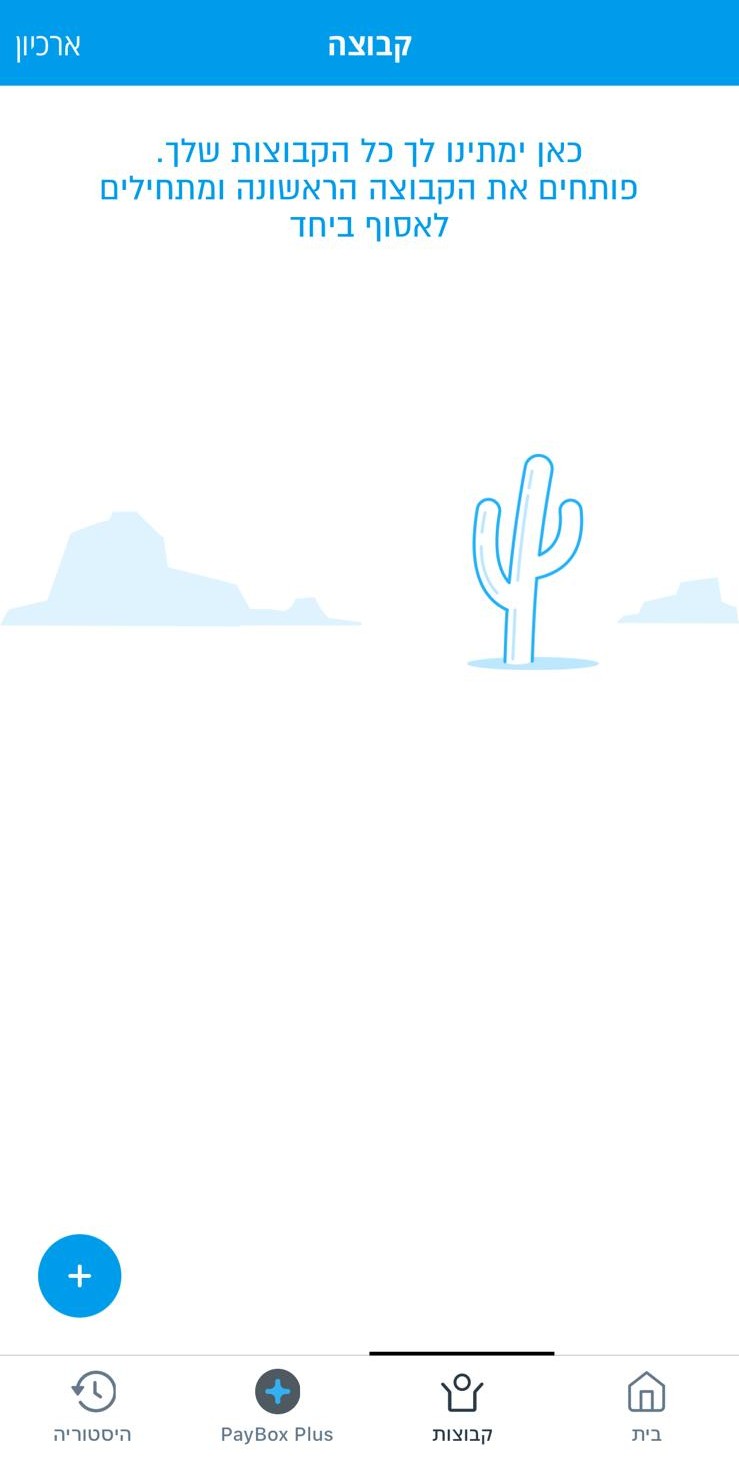
Go to Groups tab
Open the PayBox app and go to the 'Groups' tab. Tap the + button to create a new group.
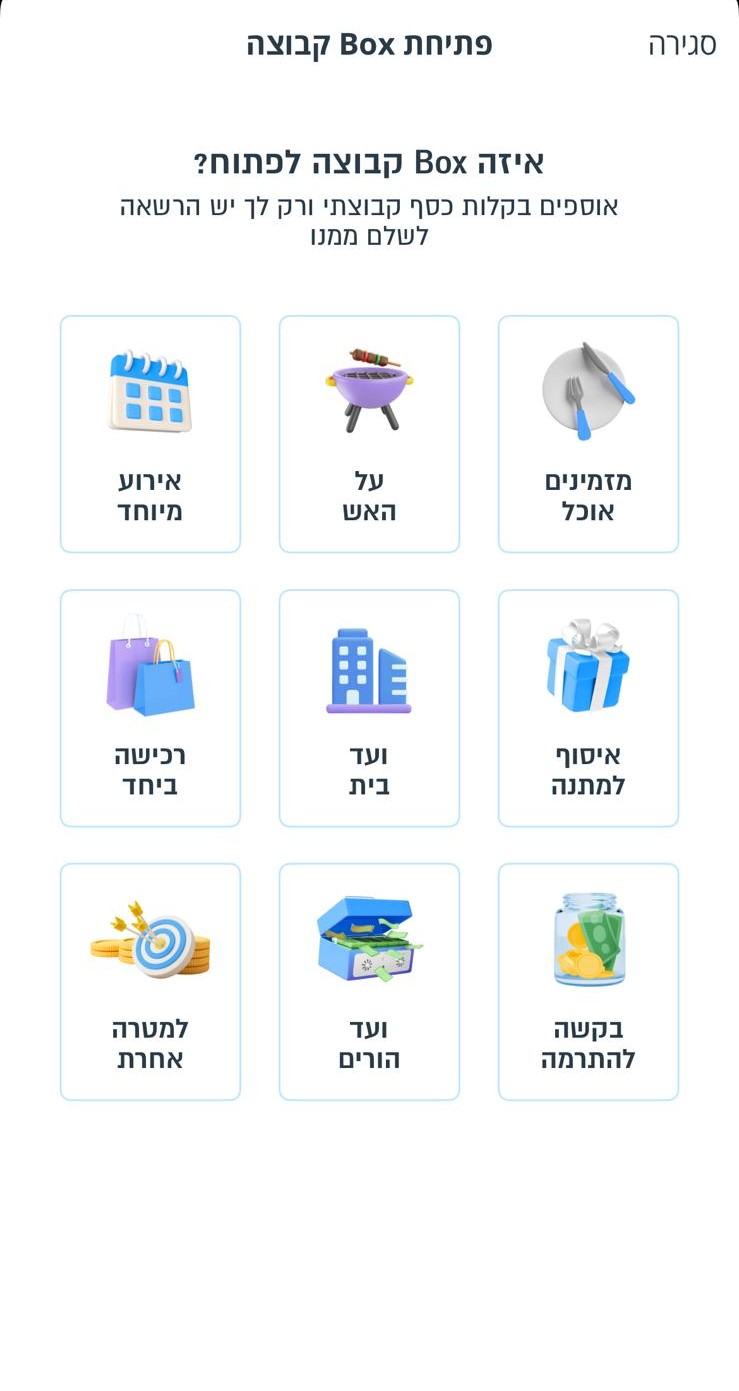
Select group purpose
Select the main purpose of your group - in our case, this can be 'Wedding' or 'Event'.
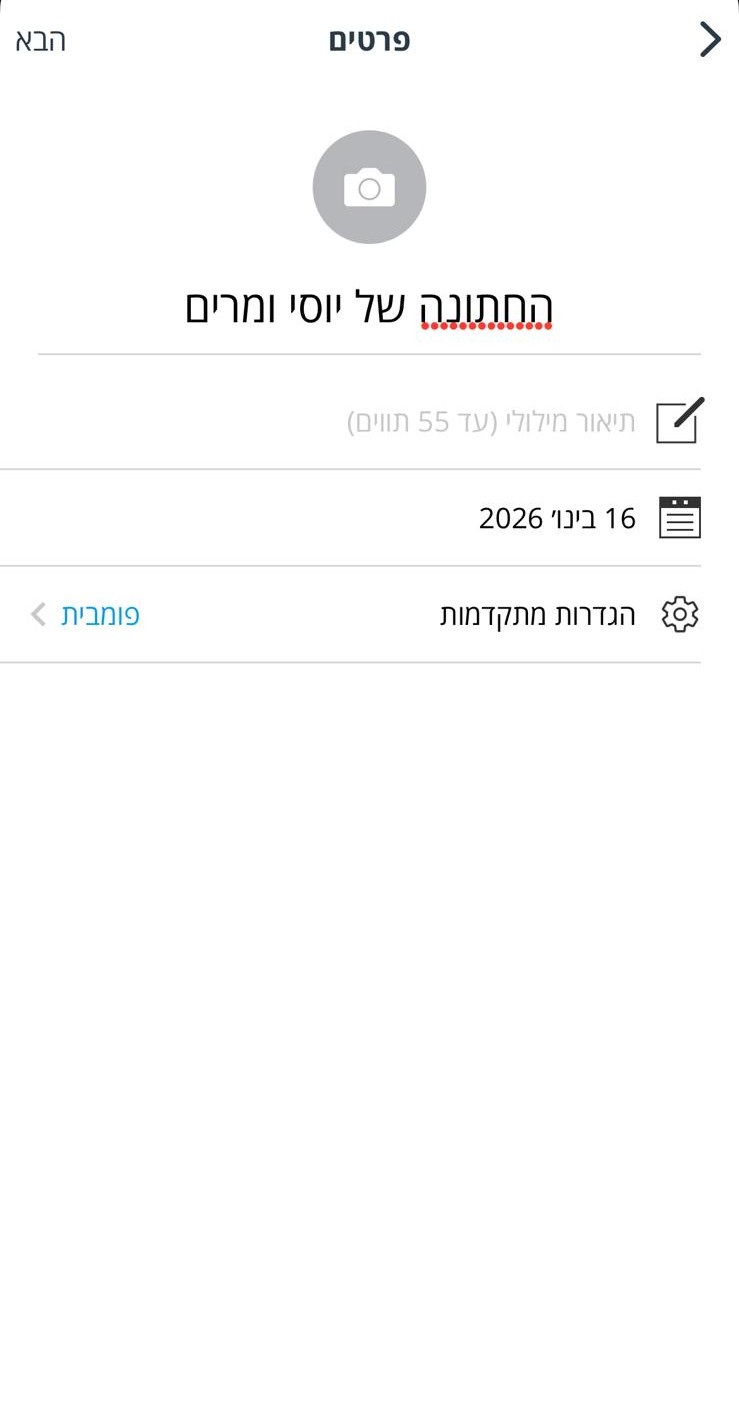
Group settings
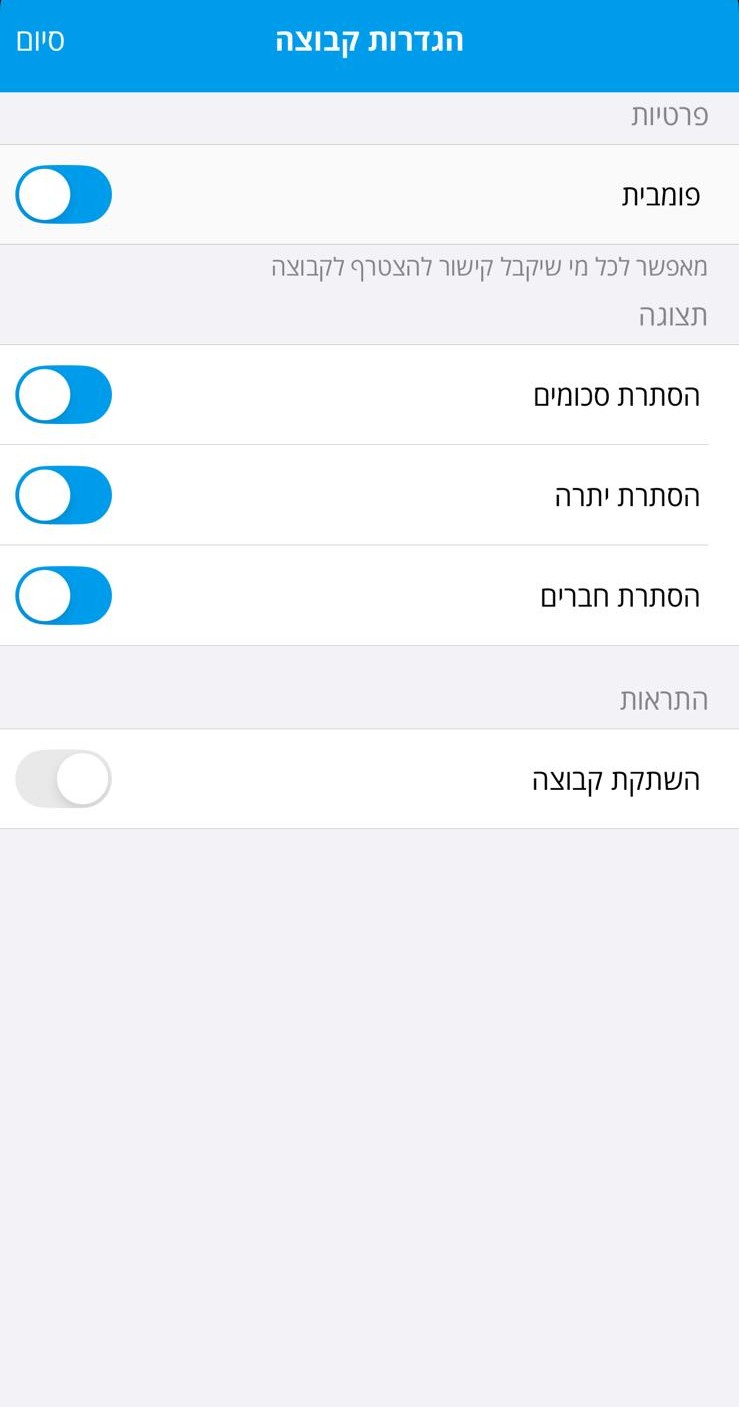
Set up your group name, whether members can see each other, and whether the gift amounts are visible. In the next step, select 'Unlimited' for the amount per member. No need to select members for the group - the link is open to everyone.
Tip: Choose 'Unlimited' to allow guests to send any amount they wish.

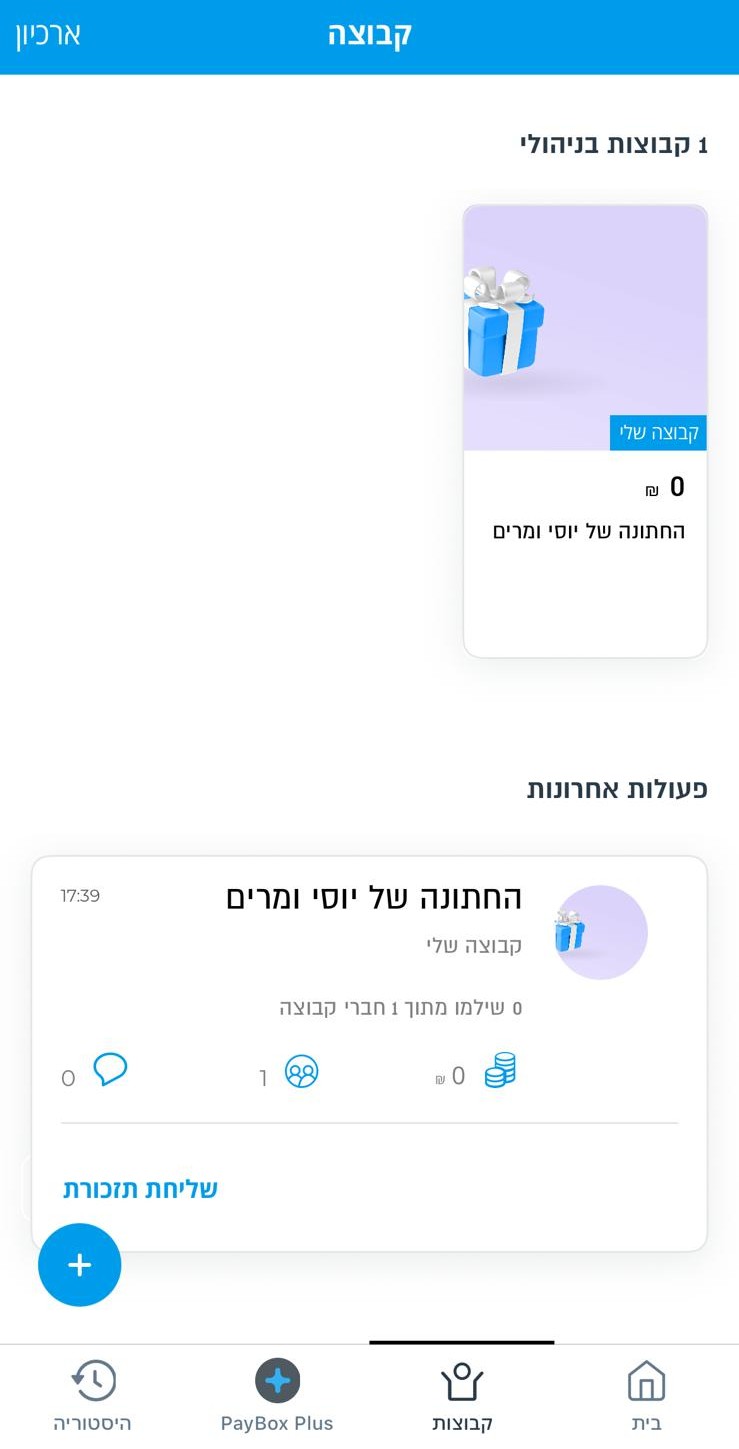
Group created
After creating the group, it will appear in your groups list.
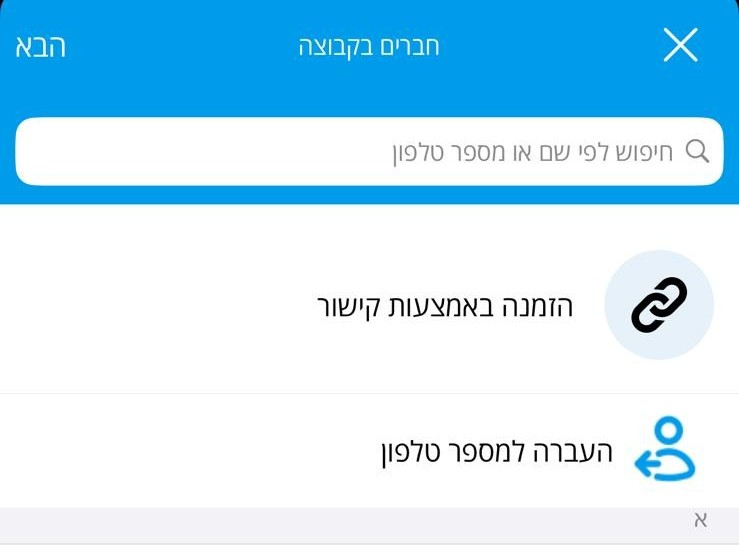
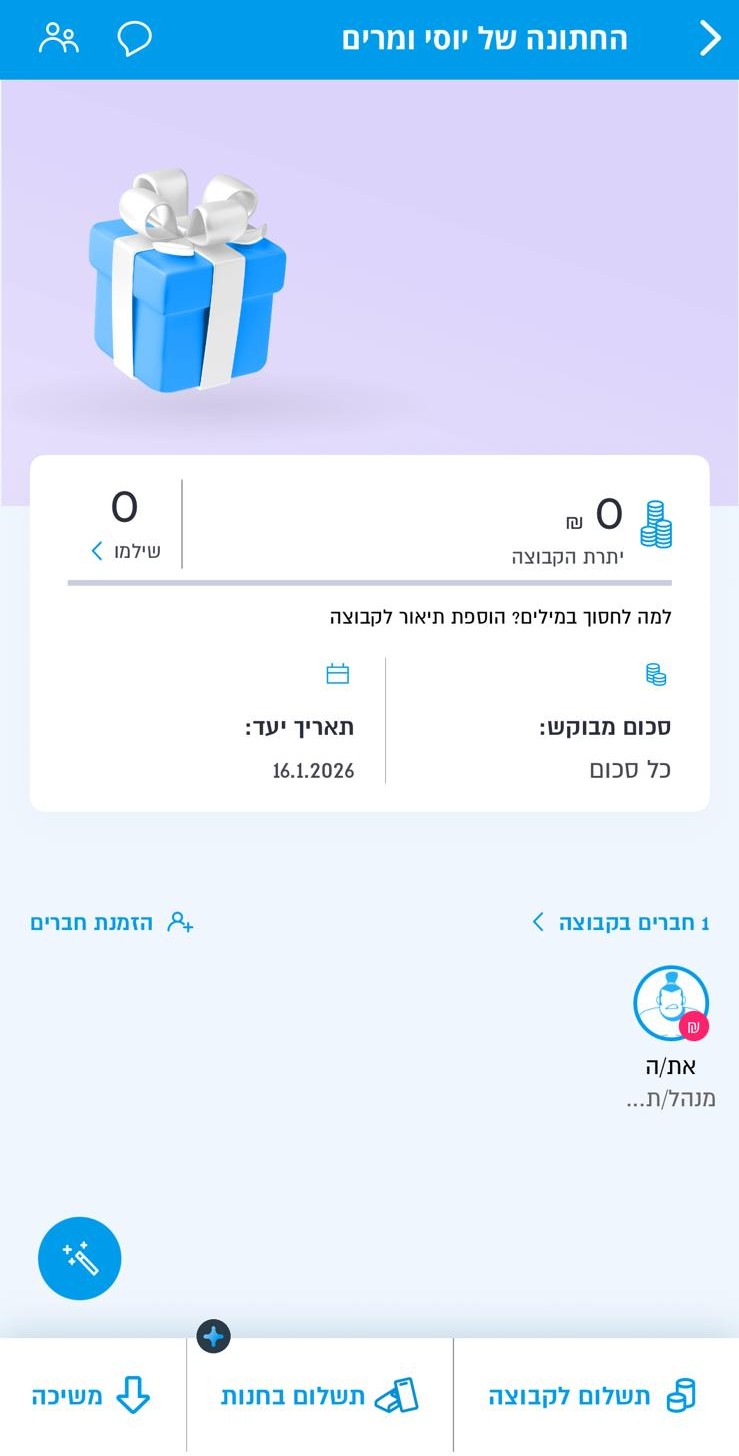
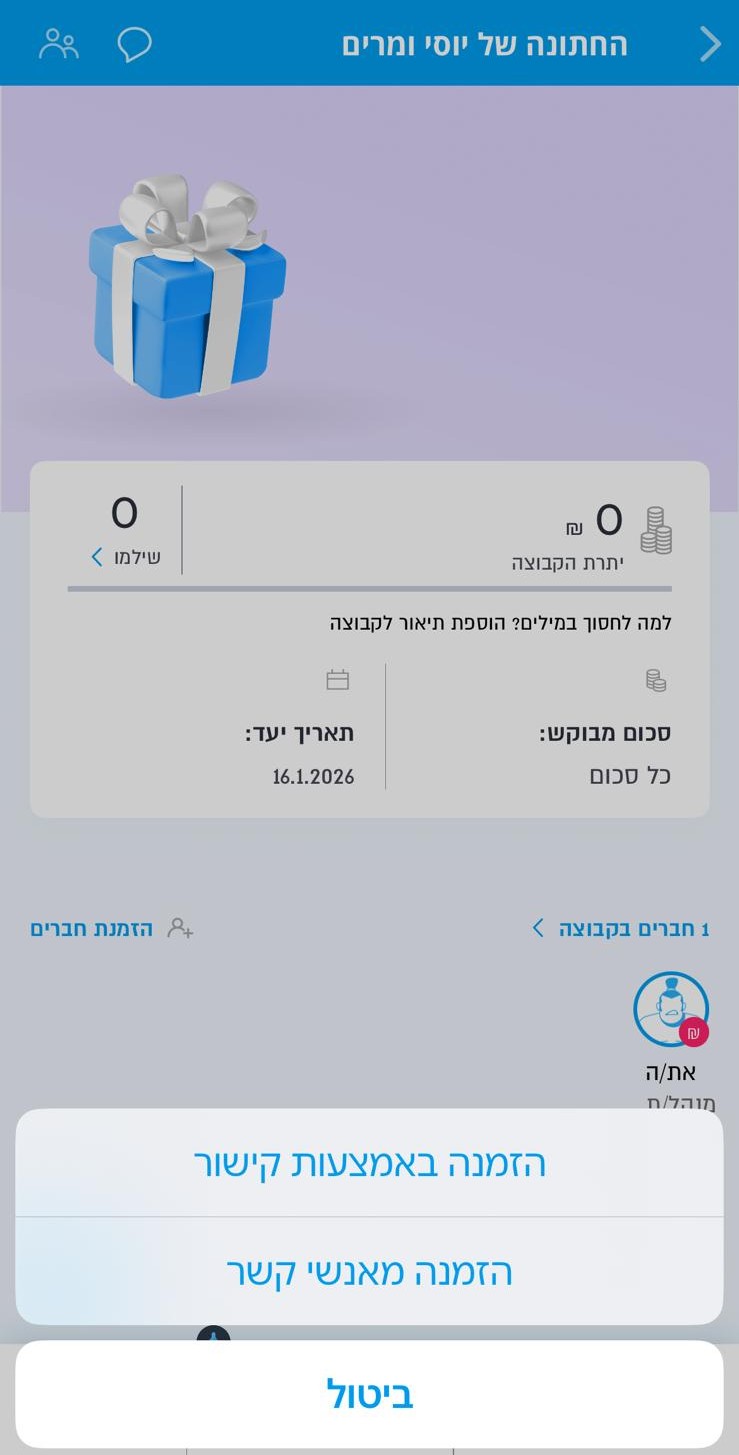
Get the sharing link
Tap on the group settings to access the group's sharing link. Copy the link.
5 steps to create a payment link in Bit
Open the Bit app to create a group for collecting money
Open a money-collecting group
Open the Bit app and tap the 'Group' icon on the main screen, next to your balance, to start a new money-collecting group.
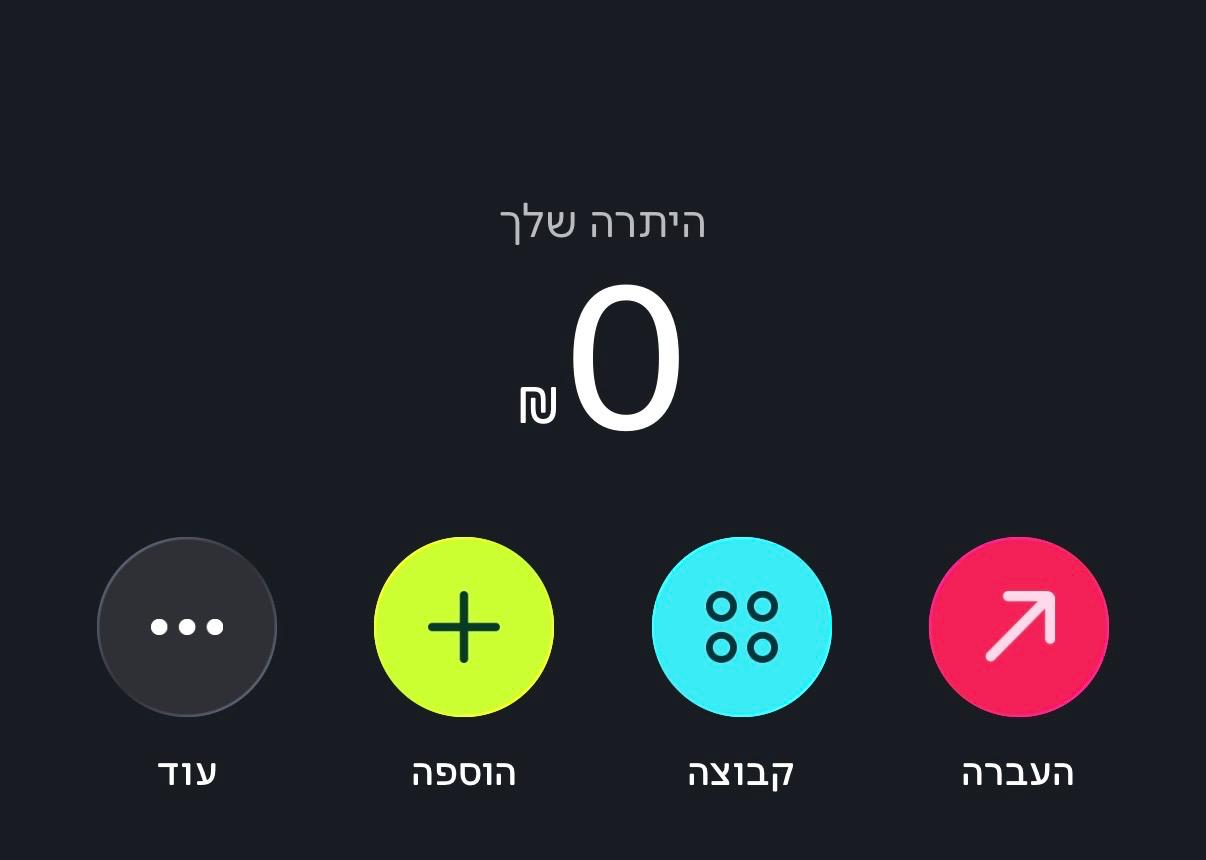
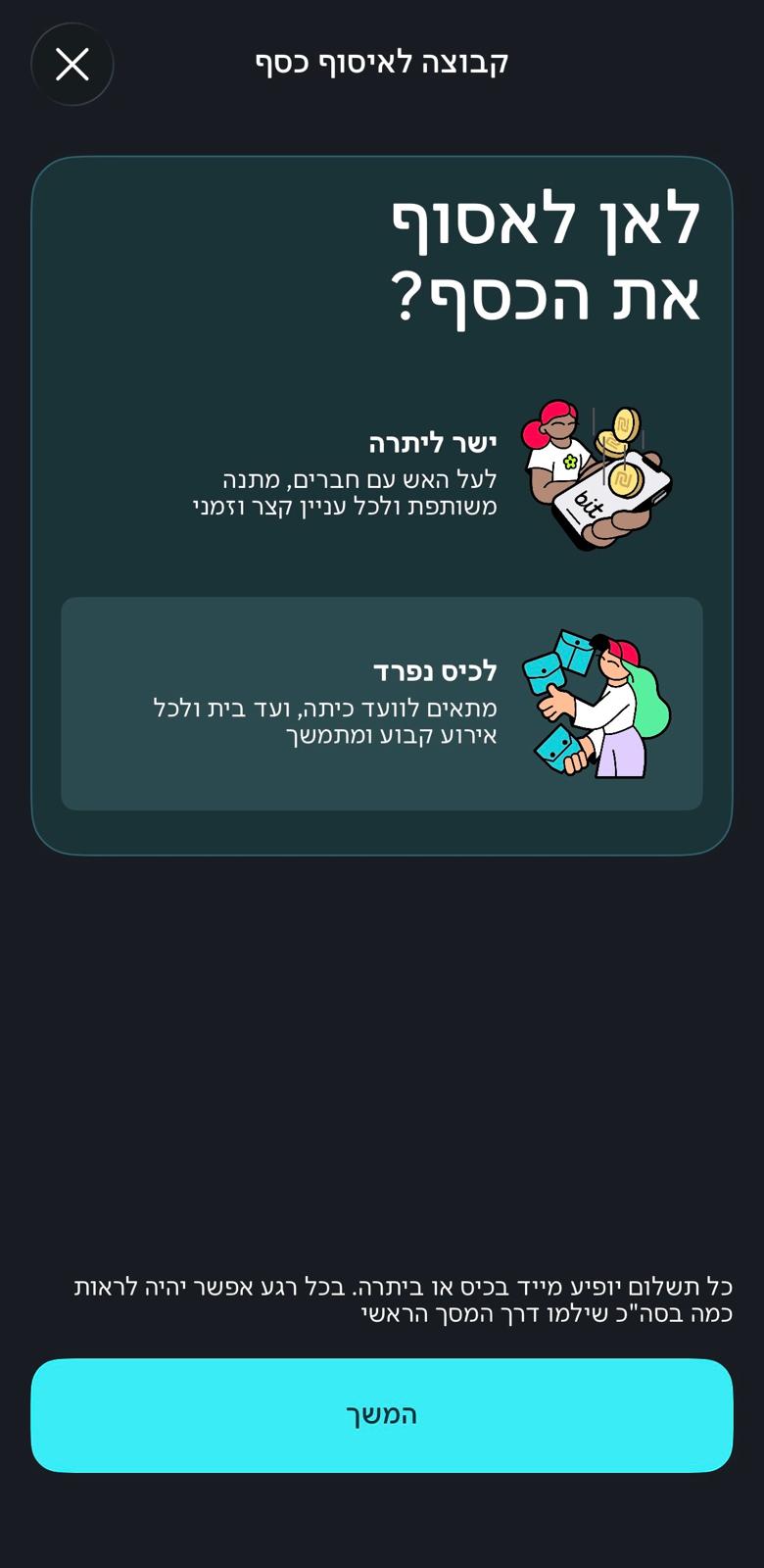
Choose the collection type
Choose 'Separate wallet' to open a dedicated fund for the event - this is the right option for a wedding. 'Straight to balance' is meant for quick, personal gifts, not for an ongoing group collection.
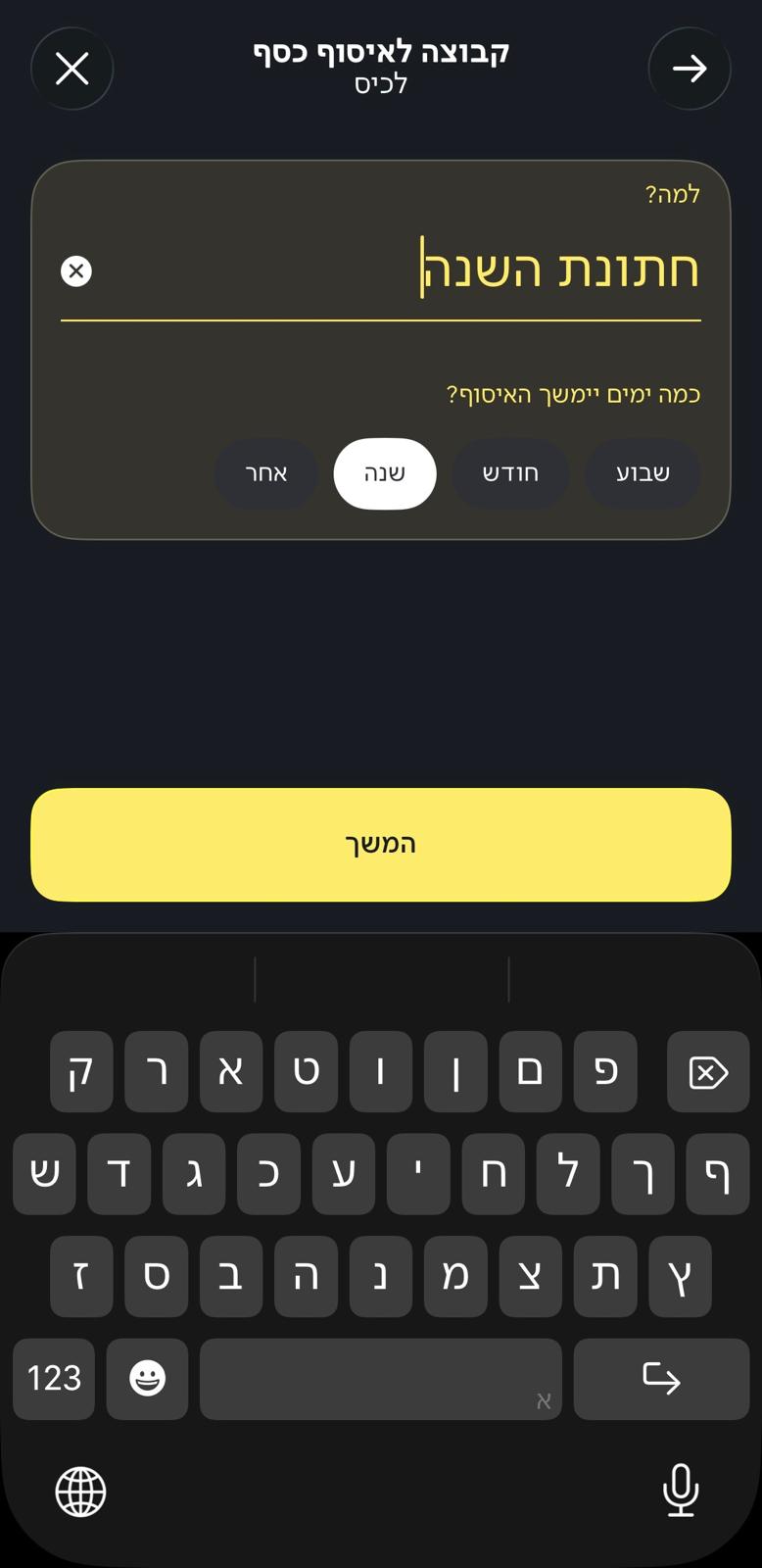
Name the group and set its duration
Give the group a name, for example 'Our Wedding', and choose how long the collection will run - a week, a month, a year, or a custom duration.
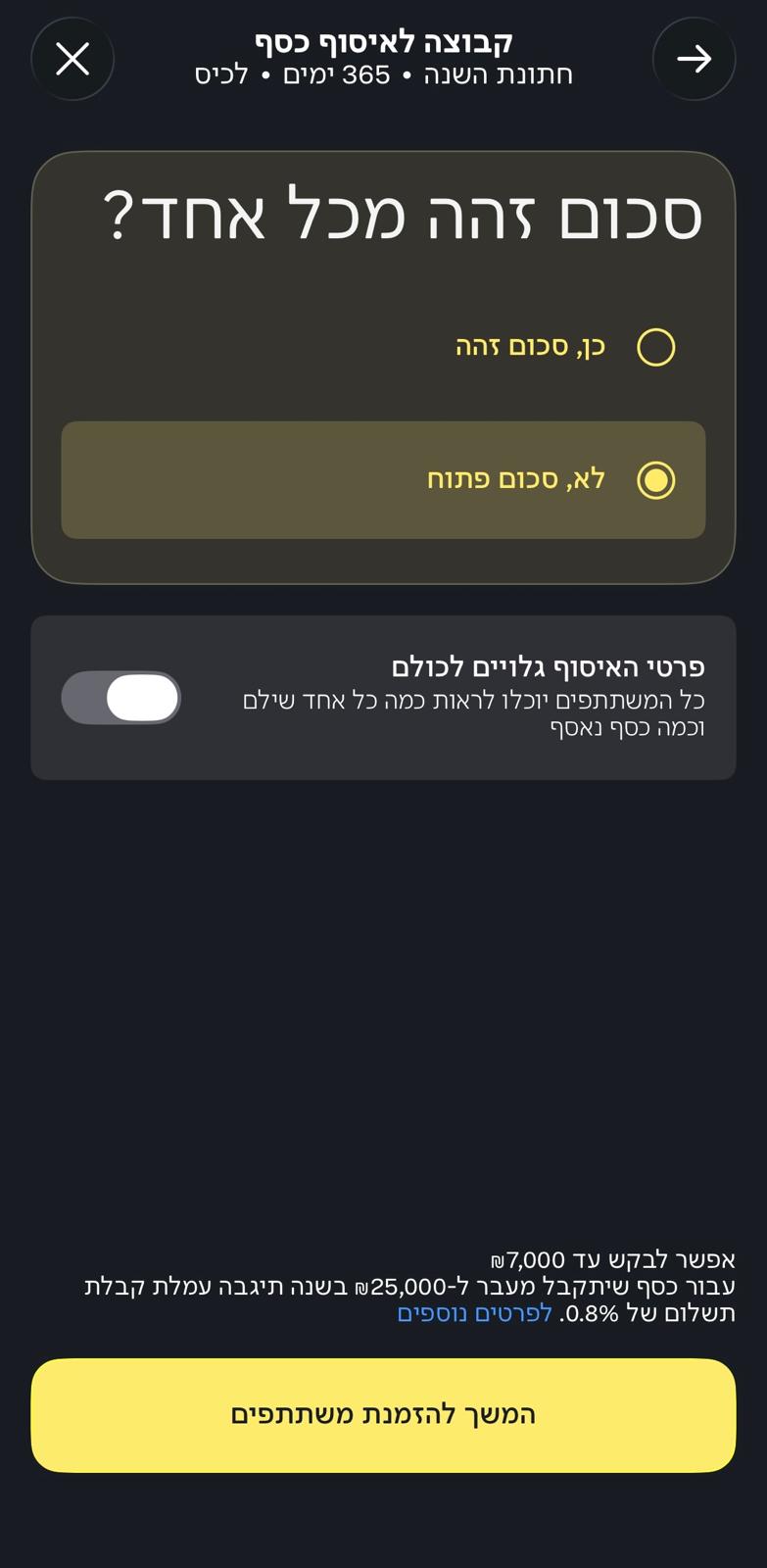
Open amount and visibility
Choose 'No, open amount' so every guest can give whatever amount they want, and choose whether the collection details - who gave and how much - are visible to all participants or stay private.
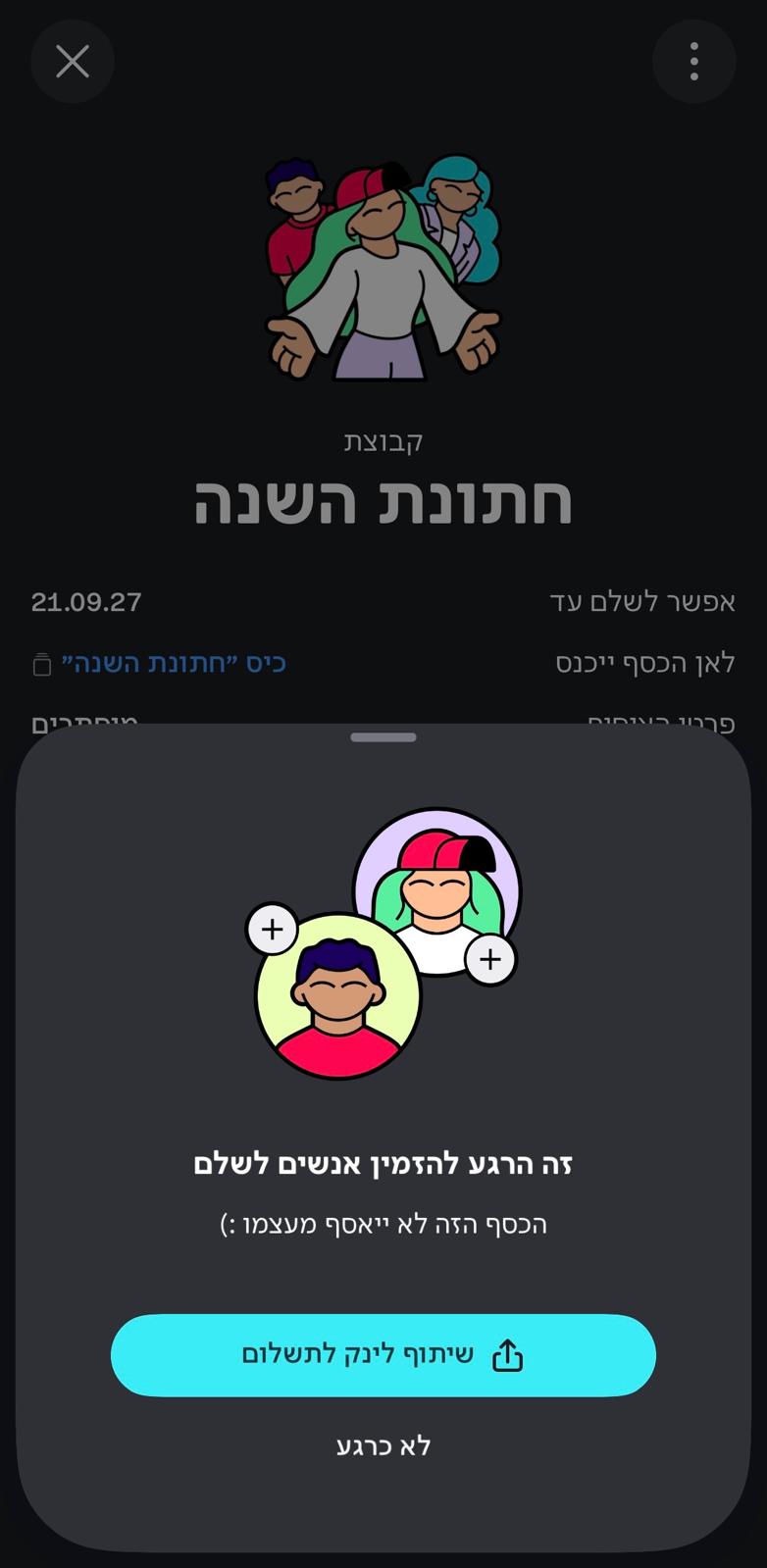
Share the payment link
After the group is created, tap 'Share payment link' to get the link. Copy it.
Add the link to your invitation
Great! Now you have a payment link ready.
Go to invitation settings on Easy Events and paste the link in the 'Payment Link' field. The link will appear in the invitation you send to guests.